

Purpose
The Reference section of the Studio workspace is used to manage reference images and control their arrangement on the artwork canvas. A single document can contain multiple images. You can select an image, change its visibility, position, size, opacity, and rotation.
Reference images are separate objects that can be arranged on the canvas. This is useful when you want to keep detail studies – such as a face, hand, fabric fold, or another subject – beside the main reference image.
Reference List
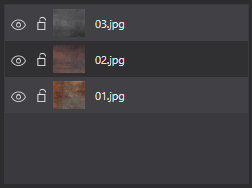
The list at the top of the section contains the reference images in the document. Each row shows visibility and lock controls, a thumbnail, and the image’s display name.
Click a row to select the image. The size, position, and appearance controls beneath the list apply to the selected image. Selection in the list is linked to selection on the canvas.
Show. The eye toggle shows or hides an individual reference image. A hidden image remains in the document and in the list; it does not need to be imported again when you want to show it.
Lock. The lock toggle protects the image against accidental editing. When an image is locked, its width, X and Y position, opacity, and rotation fields are disabled. Unlock the image to change these parameters again.
Thumbnail and Name. The thumbnail helps identify an image; its name distinguishes similar references. Long names may be truncated in the list. Hover over a name to see its full text.
To change the displayed name, open the image’s context menu and choose Rename. Renaming changes the name shown in the list, not the image content.
Image Stacking Order
When reference images overlap, their stacking order determines which one appears in front. You can reorder images by dragging entries in the list. The context menu also offers:
Bring to Front – moves the selected image in front of the others.
Bring Forward – moves it forward by one level.
Send Backward – moves it backward by one level.
Send to Back – moves it behind the other images.
When working with overlapping images, it may help to hide or lock the ones you do not intend to edit.
Selected Image Parameters
The controls below the list apply to the selected image. Some controls use icons instead of full text labels.
 Width. The width field, identified by a horizontal-dimension icon, controls the visible width of the selected image on the canvas. Measurements are displayed in centimeters or inches according to the ARS unit setting.
The physical width range allowed by this control is 0.1 to 1000 cm. Use it to give a reference image a practical size within the composition.
Fit. The Fit button automatically fits the selected reference image to the artwork canvas. It is useful for obtaining a convenient starting scale after importing or resizing an image.

 X and Y Position. The X and Y fields control the selected image’s position in the canvas coordinate system. X is horizontal; Y is vertical. Both are displayed in centimeters or inches.
These fields are useful when an image must be placed precisely rather than positioned only by dragging. For cropped images, the displayed geometry refers to the visible image area.
 Opacity. The opacity control, identified by its icon, determines how opaque the image is. Its value is displayed as a percentage. 100% is fully opaque; lower values reveal more of the content beneath the image.
This is useful when comparing overlapping references or using a less visually dominant guide image.
 Rotation. The rotation field, identified by a rotation icon, specifies the image angle in degrees. The control accepts values from −360° to +360°, changes in 1° increments, and displays one decimal place.
Rotation can help align the orientation of the reference image with the structure of the intended drawing.
Cropping, Flipping, and Centering
The Studio toolbar includes these actions for the selected unlocked Reference:
 Crop – enters cropping mode. Adjust the visible region using the on-canvas handles, then press Enter to apply or Escape to cancel. Cropping changes the visible part of the source image without rewriting its original file.
 Flip Horizontal and Flip Vertical – mirror the selected Reference in the corresponding direction. The original image file is not modified.
 Center Reference – centers the Reference on the canvas. You may also center it
  horizontally (Center Reference Horizontally) or
  vertically (Center Reference Vertically) only.
References can also be moved, resized, and rotated on the canvas. Width, X, Y, and rotation fields allow precise numerical adjustments. Most of these edits support the Studio Undo/Redo commands.
Context Menu and Removal
Right-click an image in the list to open its context menu. In addition to Rename and the stacking-order commands, it provides:
Duplicate – creates a copy of the selected reference image.
Remove – removes the image from the document.
You can also remove the selected list entry with the Delete key. Removing an image differs from hiding it: if you may need it again, temporarily hide it instead.
Measurement Units
The image width and position fields use the common ARS measurement unit setting. Switching between centimeters and inches changes the displayed numbers without changing the image’s physical size or position on the canvas.
Rotation remains in degrees, and opacity is expressed as a percentage.
Practical Example
Suppose you are painting a portrait and want a close-up of an eye beside the main Reference. Import both images, select the detail image in the list, and set its width and X/Y position. If the detail obscures the main reference, change their stacking order or temporarily hide one image. Once an image is placed correctly, lock it to avoid moving it accidentally.
Contour Reference from Viewer
A Contour View prepared in Viewer can be transferred to Studio with Send to Studio. ARS writes the contour PNG to the Studio project’s `_Assets/References` directory and adds it as a new selected Reference. The Viewer grid is not included. You can then size and position the Reference on the canvas and prepare it for printing.
