

What Journal is for
Journal records how a physical artwork develops over time. It connects the artwork, its working sessions, the materials used, work-in-progress (WIP) photographs and video clips, and an optional final artwork photograph and description. It is a record-keeping workspace, not a paint editor or a video editor.
Journal works independently of Studio and Viewer. You can keep a Journal without opening a Studio canvas or a Viewer photograph, or you can attach it to the same ARS project that contains those documents. Opening a project in one workspace does not automatically open it in the others.
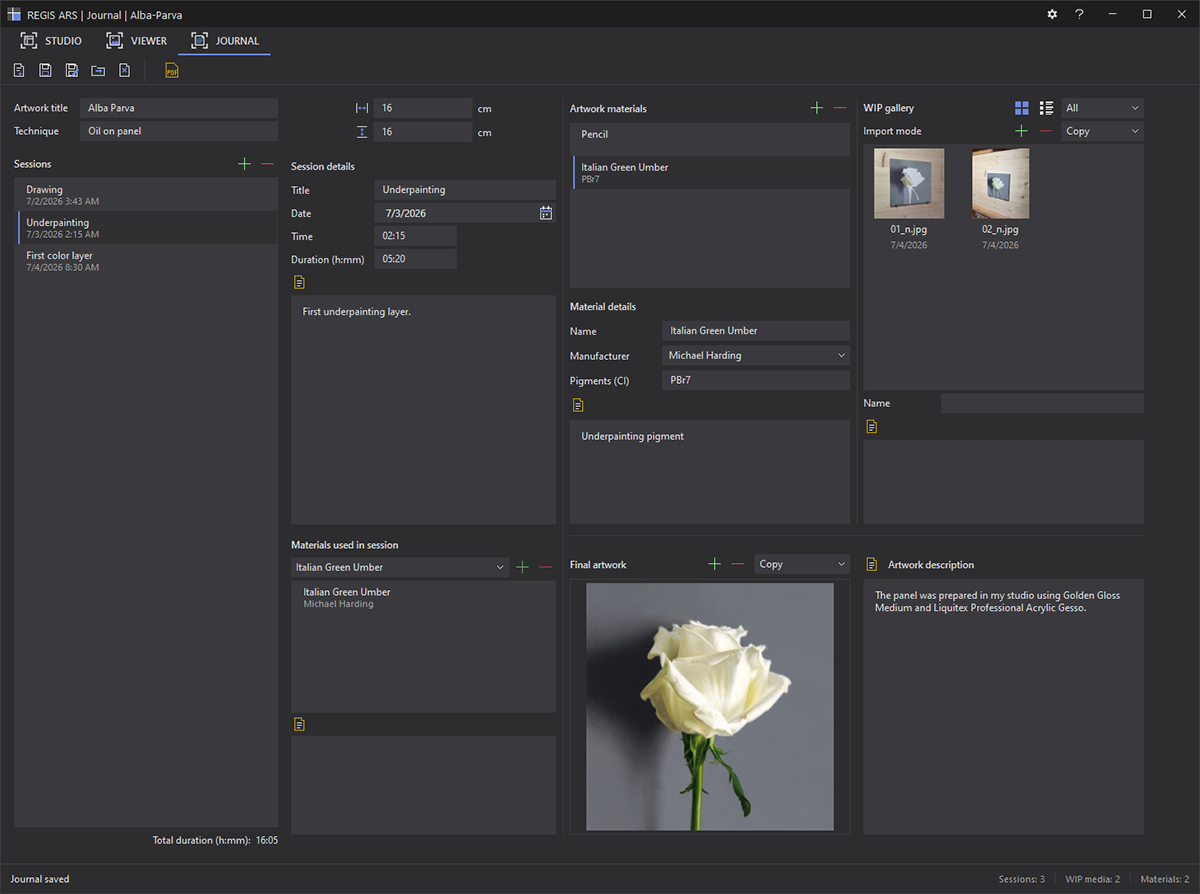
Journal is organized into the following connected areas:
| Area | What it contains |
|---|---|
| Artwork information | Artwork title and technique. |
| Artwork dimensions | Optional physical width and height, displayed in the currently selected unit. |
| Sessions and session details | A list of working sessions; the selected session’s date, start time, duration, notes, assigned materials, and usage notes. |
| Artwork materials and WIP gallery | A reusable material list for the artwork and session-based photographs/videos. The gallery has Tile/List and Session/All views. |
| Final artwork | One optional finished-artwork photograph and an independent artwork description. |
| Status bar and PDF export | Short status messages, counts of sessions/WIP media/materials, and Artwork Summary or Process Report export. |
Key distinction: the material catalog belongs to the artwork, but a material assignment, session note, and attached media item belong to a particular session. The gallery can also show media from all sessions together. Final artwork, by contrast, belongs to the artwork and remains independent of individual sessions.
Suggested first-time workflow
- Switch to Journal and click New Project on its toolbar.
- Enter the Artwork title and, if useful, its Technique and physical Width / Height.
- Add the paints, supports, mediums, drawing tools, or other supplies you want to track in Artwork materials. You do not have to enter every material in advance.
- Click
 Add session in Sessions. Give it a descriptive title and check the date and start time.
 - Record your Duration and notes about what you actually did. Assign relevant materials from the catalog and add notes about how each was used.
- Select Copy or Link in the gallery’s Import mode, then add WIP images or short video clips. New media is attached to the selected session. The gallery can be shown as
 Tile or
  List.
List. - If you have a finished-work photograph, add it separately under Final artwork and enter its Artwork description. This can also be done later.
- Click Save Project. For the first save, choose whether to Create a new ARS project or Attach Journal to an existing one.
- On later days, reopen the Journal project, add another session, and continue the log. You can revisit earlier sessions, their media and material notes at any time. When you need a shareable document, use
 Export PDF… on the Journal toolbar.
Journal does not automatically record elapsed painting time, determine which pigment was used, or import pictures from a camera. These are entries you create and maintain.
Artwork title, technique and dimensions
The Artwork title is required (1–160 characters); Technique is an optional descriptive field, such as oil on linen or graphite on paper. Width and Height are optional: leave an unknown dimension blank. If provided, a dimension must be greater than zero and no more than 1000 cm after conversion. The displayed unit follows ARS’s current ruler-unit setting; values are stored internally in centimeters. The Journal dimensions describe the artwork but do not automatically resize or edit a Studio canvas.
Journal toolbar: New, Open, Save, Save As and Close
The five project-management commands on the Journal toolbar apply to Journal only; the application’s main File menu is used for Studio projects. A separate Export PDF… button creates a report without saving or replacing the Journal.
| Command | Action |
|---|---|
 New Project New Project |
Creates an unsaved Journal with an initial placeholder artwork title. If an open Journal has changes, you are prompted before replacing it. |
 Open Project Open Project |
Select an ARS .arsproj file. Journal reads the .arsjournal document stored with that project. If the project has no Journal document, ARS reports this and keeps the current Journal open. |
 Save Project Save Project |
Saves the current Journal to its assigned project. If it has not yet been assigned, asks whether to create a project or attach it to one. |
 Save Project As Save Project As |
Lets you choose a new project or another existing project for the current Journal. It does not clone every other workspace’s data. Existing committed Journal media assets are copied into the new target as necessary. |
 Close Project Close Project |
Closes the current Journal; you are prompted if there are unsaved changes. It does not close Studio or Viewer. |
When saving an unassigned Journal (or using Save As), the choice is:
- Create – choose a name and location for a new ARS project. ARS creates its normal project folder and stores the Journal there.
- Attach – choose the existing project’s main .arsproj file. This adds a Journal document to that project only if one is not already present. Attach does not replace somebody else’s Journal data.
- Cancel – return without completing the save.
The main window title identifies the active workspace and its project. Journal shows an asterisk (`*`) when its current document has unsaved changes. The unsaved state is separate from Studio’s and Viewer’s unsaved states. Closing the application checks open workspaces, including Journal, for unsaved changes.
Before a save, ARS checks certain edited fields. If a field is invalid, a warning asks you to correct it; the save does not silently discard an invalid value. A canceled or failed save does not count as a successful save.
Where Journal data is stored
Journal stores the artwork, session, material, and media metadata in .arsjournal. It does not embed large image or video files in that document.
The same Journal media asset folders are used for WIP media and the optional Final artwork image. The Originals folder contains roject copies for items imported using Copy. For items imported using Link, the original stays at its external location and Journal stores an absolute file path; a project thumbnail is still kept in Thumbnails. An ordinary save manages Journal assets but does not copy linked originals into the project.
The bottom Journal status bar shows brief operation messages on the left and counts for sessions, WIP media and materials on the right. The final artwork image is not counted as WIP media. The total recorded session duration is displayed separately beneath the Sessions list.
Moving or backing up a Journal: copy the complete ARS project directory, including the _Assets folder. If the Journal contains linked files, also preserve those files at paths the destination computer can access. Do not assume that the main .arsproj file or .arsjournal alone contains the photographs. Studio’s Collect Project Assets command is not a tool for collecting Journal’s external linked media.
