

Purpose
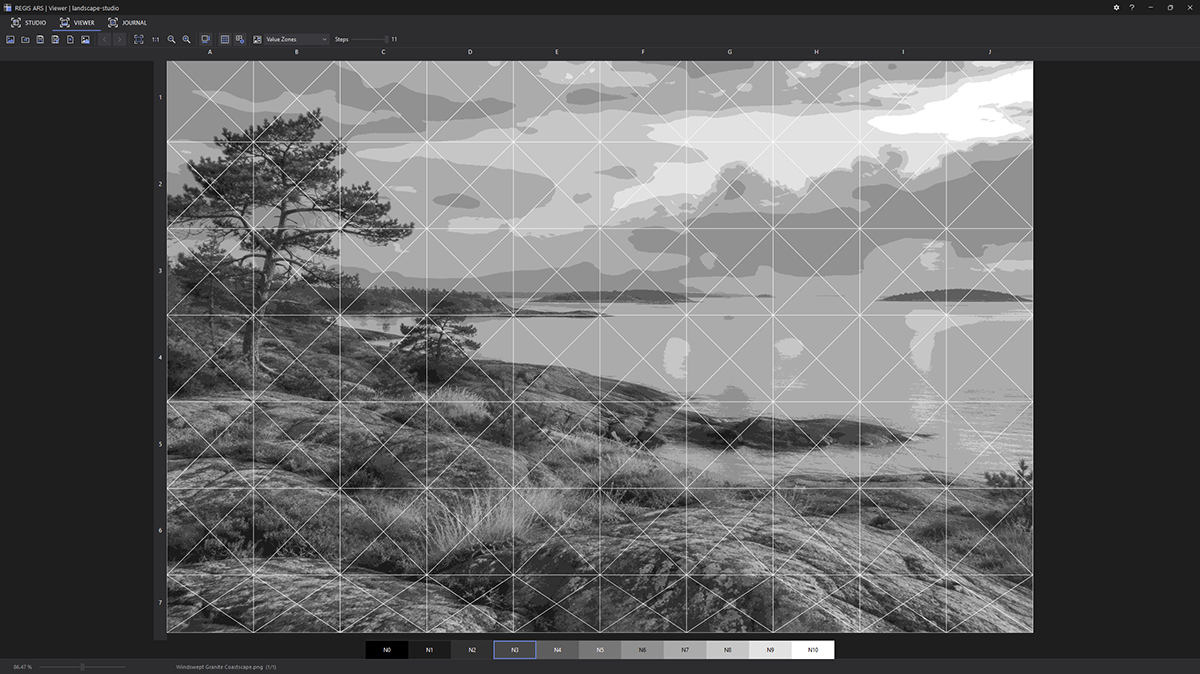
Viewer is designed for using photographic references at a desk or easel. It can hold multiple photographs, but only one active photograph is displayed at a time. Viewer is not the Studio composition editor: it does not arrange images together or modify the original image files.
Viewer can save its image list and per-image settings in a separate .arsview document associated with an ARS project. Creating, opening, and attaching projects are described in the shared Project Management chapter.
Opening a photograph
Choose  Open Image on the Viewer toolbar. Supported formats include PNG, JPEG, TIFF, BMP and GIF. Each newly opened image is added to the Viewer list rather than replacing the previous image.
For a newly opened image without previously saved canvas dimensions, Viewer uses the default width from Settings → Viewer (50 cm initially) and calculates the initial height from the photograph’s proportions. This is a convenient starting size, not an automatic measurement of the subject. Set the intended physical canvas dimensions in Canvas Dimensions, in centimeters or inches, before relying on 1:1.
Viewer does not change the image pixels or automatically copy the original file into the project folder. The file stream used for loading is closed after decoding.
Multiple images
The bottom Viewer status bar displays the active file name and its position in the list, for example StillLife.jpg (2/4). Use the Viewer toolbar controls to show the previous or next image. Removing an image takes it out of the Viewer list only; it does not delete the source file from disk.
Each image retains its own:
- physical canvas width and height;
- grid visibility, divisions or cell dimensions, diagonal mode and shared grid-line color;
- coordinate display option;
- chosen analysis mode and its settings (Grayscale, Value Masses, Value Zones, Color Masses, and Contour View).
When you switch photographs, Viewer remembers the previous image’s settings and restores those of the selected image. Zoom and pan are not stored per image: the new active image opens using Fit to View, so the whole canvas is visible.
The coordinate strips can be dragged in Viewer for easier reading. Their positions are temporary view adjustments, not saved settings for individual images.
Zoom and pan
 Fit to View fits the entire canvas within the available viewing area. 1:1 (Physical Size) uses 100% physical canvas magnification. With the correct canvas dimensions and a calibrated monitor profile, a 10 cm segment of the assigned canvas measures 10 cm on screen. It is not an image-pixel 1:1 mode. See Display Calibration.
Use the toolbar 
 Zoom In / Zoom Out buttons for stepped changes, or the mouse wheel to zoom around the cursor. Pan with the middle mouse button, or hold Space and drag with the left mouse button.
The bottom status bar shows the current zoom percentage and a Fine Zoom slider for precise, continuous adjustment. Its range is −10% to +10% relative to the current zoom, not ±10 percentage points. For example, starting at 125% and moving the slider to +5 changes the magnification to 131.25%. The image updates while the slider moves; the adjustment is centered on the Viewer viewport.
When you release the slider, its handle returns to the center, but the new image magnification remains unchanged. The next adjustment starts from that new magnification, so you can refine the zoom repeatedly without needing a longer slider. Click the slider to give it keyboard focus: arrow keys change zoom in 0.1% relative steps, Page Up / Page Down in 1% relative steps, and Home / End move to the slider’s minimum / maximum. Using the mouse wheel, toolbar zoom buttons, Fit to View, or 1:1 automatically makes the newly selected zoom the slider’s center point.
Fine Zoom affects only the on-screen view. It does not change the original photograph, canvas dimensions, or the proportions between the image and its grid. The displayed percentage is based on physical canvas dimensions, not the number of photograph pixels. Physical accuracy requires the correct dimensions and a separately calibrated monitor; Fine Zoom alone cannot supply either.
Physical canvas dimensions and independent grid
Viewer canvas dimensions are independent of Studio. The image fits proportionally inside the canvas; it is never stretched out of proportion. The Match Canvas to Image Aspect command adjusts the canvas aspect ratio to the photograph.
For the first image in an empty Viewer, the initial grid comes from Settings → Viewer; later images in the same document inherit the previous image’s grid settings. Saved images retain their own grids. Viewer grid modes include Divisions and Cell Size. You can enable diagonals in either direction, choose one shared line color, and display cell coordinates. Viewer does not offer Studio’s grid refinement tools. The grid is a separate display overlay; it is not written to the source photograph.
Image analysis and memory use
The analysis-mode list offers Normal, Grayscale, Value Masses, Value Zones, Color Masses, and Contour View. Each mode uses a temporary processed image; the original photograph remains unchanged.
The selected mode and settings are stored separately for each photograph. For detailed explanations of the controls and sending contours to Studio, see Image Analysis.
The list may contain many images, but only the active photograph is retained as a full-resolution Viewer bitmap. Previous images and derived copies are not stored permanently in a multi-image bitmap cache. Temporary memory peaks can occur while decoding a replacement image or while a background image-processing task is finishing.
Project saving
Viewer data is saved as Viewer/.arsview within the project folder; original images are not embedded in this document. On the first Save, choose either Create for a new project or Attach to add Viewer data to an existing .arsproj. See Project Management for commands and restrictions.
