

Purpose
Value Analysis helps you assess how light or dark a color is, separately from its hue. Value is essential in painting for describing light, shadow, form, and depth. Colors with different hues and chroma can have similar Values; conversely, colors that appear close in hue may differ substantially in lightness.
ARS displays a sample’s Value together with a neutral gray scale. This tool is designed for visual analysis and comparison, not for measuring the physical reflectance of paint.
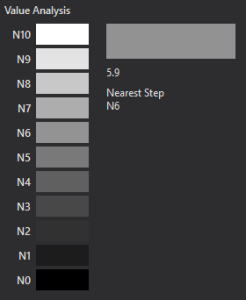
Neutral Value Scale
The left side displays eleven neutral steps labeled N10-N0:
- N10 – the lightest, white step.
- N9-N1 – intermediate gray Value steps, from lighter to darker.
- N0 – the darkest, black step.
These steps are an approximation based on the principles of the Munsell neutral Value scale, not merely a set of equally spaced RGB values. They are intended to provide a more useful visual reference for lightness comparisons.
The on-screen scale is not a calibrated reproduction of physical Munsell standards. Monitor profiles, display brightness, surrounding light, and other factors may affect its appearance. Use numerical Value as a guide, not as an absolute formula for mixing paint.
Value Sample
When you take a color sample from a reference image or select a saved palette sample, the Value Sample area shows a neutral gray patch representing that color’s calculated lightness.
A numerical Value appears below the patch. It need not be an integer; for example, 7.5 is possible because the calculated lightness may fall between two neutral steps.
Nearest Step identifies the N0-N10 neutral step closest to the calculated Value. This is useful for quickly placing a color within a clear light-and-shadow structure.
How Value Is Calculated
ARS accounts for the luminance contribution of the RGB channels rather than simply averaging the three channel numbers. Red, green, and blue contribute differently to perceived lightness. The result is then mapped to an approximate Munsell-style Value.
This is why two colors with a similar average RGB channel value may have different Values, while colors of different hues may have similar Values.
Important: Value Analysis uses the same color result shown in the upper Color Analysis section. For Square or Circle samples, Value is calculated from the resulting average color; it is not presented as a separate average of every pixel’s individual Value.
Workflow
- Sample a color from a reference image or select an existing sample in the Sample Palette.
- Examine its gray equivalent in the Value Sample area.
- Compare the calculated Value with the eleven neutral steps.
- Note the Nearest Step reading.
- Sample another color and compare the two Values. Save both samples if you want to return to them later.
Practical Example
Suppose you are painting the petals of a white rose. A lit petal area may be warm while its shadow is cool. Their hues differ, but it may be difficult to judge whether the Values are sufficiently separated from color alone.
Take one sample from the lit area and another from the shadow. Compare their gray equivalents and numerical Values. If their Values are very close, the petal may read as too flat even when both hues look convincing.
Use this tool as one aid to your decisions. Always judge the overall color and Value relationships with your own eyes as well.
Important Notes
- Value is not the same as hue or saturation.
- The gray patch is an analysis result; it does not alter the original reference image or the sample saved in the palette.
- The 50% gray background of a Sample Strip is for comparing color appearance in different surroundings. It is not the same tool as the N0-N10 neutral Value scale.
- Value Analysis in Studio does not convert the entire artwork canvas to grayscale. It analyzes the currently selected color sample.
