

Purpose
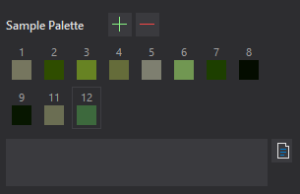
The Sample Palette stores colors selected from reference images on the canvas. Unlike the most recent color-sampling result, saved samples persist in the project and can be used for color comparisons, Sample Strips, and source-location markers.
Every ARS document has one shared Sample Palette, even when the canvas contains several reference images. The palette is not separated into individual palettes for each source image.
Saving a Sample
Use Color Analysis to sample a color. When the desired result appears in the color swatch above the palette, select  Add Sample.
ARS creates a new sample, assigns it an automatic number, and displays it in the palette. The new sample is selected immediately.
Taking a color sample alone does not save it. To retain multiple colors, repeat the sampling and Add Sample steps for each result.
Sample Numbers and Colors
Each palette entry contains a small color swatch and a number. Numbers are assigned automatically and remain fixed: 1, 2, 3, and so on. Samples cannot be given word-based names.
A sample’s number links the same color across three places: the palette, its strips, and (when enabled) its source location on the reference image. Short numeric identifiers remain legible without obscuring the visual material.
Removing a sample does not renumber the other samples, and the removed number is not assigned to a later sample. For example, after creating 1, 2, 3 and deleting 2, the next sample will be numbered 4.
Recommendation: use these short numeric identifiers on the artwork and in material prepared for printing. They take up less space and correspond directly to the strips. Put any longer explanation in the sample’s note instead of its number.
Selecting a Sample
Click any color swatch in the palette. It becomes the selected sample, and its saved color appears in the Color Sample and Value Analysis sections.
Hover over a sample to see additional information: its number, HEX color, and any note that has been entered.
Selecting a sample does not change the stored color or automatically add it to a Sample Strip. Strip membership is controlled separately.
Sample Note
A  Sample note is free-form text attached to a particular saved sample. For example, you might write “Warm marble shadow below the vein” or “Pale sky near the horizon.”
- Select the sample in the palette.
- Enter or edit its text in the note field below the palette.
- Select the Save note (Ctrl+Enter) icon or press Ctrl+Enter.
- To cancel uncommitted edits, press Escape.
Notes can contain multiple lines and are currently limited to 2,000 characters. Editing a note does not change the sample’s number, color, or original source location.
Notes do not appear on reference images or Sample Strips. Those areas use only numeric sample labels, so even a long note does not distract from color evaluation.
Removing Samples
Select a sample and choose  Remove. The sample is deleted from the shared palette and from every strip that contains it.
This differs from removing a sample only from the selected strip. In that case, the sample remains in the shared palette and in any other strips where it is used. The distinction is especially important when working with several color groups.
If a reference image is removed from the project, its saved color samples are also removed. Hiding a reference image does not remove its samples.
Project Storage
Color samples are stored in the ARS project file (.arsproj), including their colors, numbers, notes, original sampling positions, and source-reference links. Reopening the project restores the palette alongside the other artwork-canvas settings.
Practical Example
When preparing a landscape, you can save colors from a bright cloud, a sky shadow, a water reflection, and tree foliage. All samples appear in one palette, but you can later organize them into separate Sky, Water, and Vegetation strips. If one sample is useful for more than one group, there is no need to sample or save it a second time.
