

Purpose and basic principles
REGIS ARS (Artist Reference Studio) contains independent workspaces: Studio, Viewer, and Journal. They share one application, common tools, and a consistent on-disk project structure, but each workspace manages its own open project.
You can therefore:
- work on different projects in Studio, Viewer and Journal;
- open the same project in multiple workspaces, with each workspace saving its own part;
- use Viewer or Journal alone, without creating a Studio document.
Important. Opening, saving, or closing a project in one workspace does not automatically switch the active project in another workspace. The main File menu commands apply to Studio; Viewer and Journal have separate project controls on their own toolbars. See Journal overview.
Shared project files and folders
The main project file uses the `.arsproj` extension. It holds the project identity and, if Studio is used, Studio document data. Viewer data is stored in a separate `.arsview` file, and Journal data in a separate `.arsjournal` file. A project may contain data for only one workspace; documents for unused workspaces are optional.
For example, the StillLife project has the following structure:
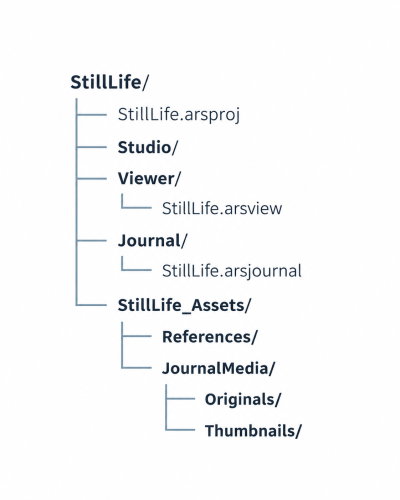
This example includes both Viewer and Journal documents. If either workspace has not been used, its `.arsview` or `.arsjournal` file may be absent. Some folders may be empty; JournalMedia folders are used when Journal media has been saved.
When you choose a location for a new project, ARS creates a folder named after the project. For example, choosing `D:\Paintings\StillLife.arsproj` results in `D:\Paintings\StillLife\StillLife.arsproj`.
To select an existing project, choose the main `.arsproj` file in that folder, not a workspace subfolder or its `.arsview` / `.arsjournal` file. ARS determines the internal paths automatically.
Project document files (`.arsproj`, `.arsview`, `.arsjournal`) are not image archives. Journal manages its own thumbnails and optionally copied media in the `_Assets/JournalMedia` folder; files linked from external locations remain external. Studio and Viewer image paths are managed separately.
Independent projects and the title bar
Each workspace retains its own project path and unsaved-change state. For example, Studio may have `Portrait.arsproj` open while Viewer has `Roses.arsproj`. Both remain open when switching tabs.
The main window title displays the project belonging to the active workspace. An asterisk (`*`) indicates unsaved changes in that workspace; it does not mean that an original photograph was modified. The filename shown on the Viewer toolbar indicates the active photograph and its position in the list, not an image-editing dirty state.
When you try to replace or close a document with unsaved changes, ARS offers:
- Save – save and continue. If saving fails or is canceled, the requested switch or close is not performed;
- Don’t Save – continue without saving the current changes;
- Cancel – stay with the current document.
When exiting ARS, unsaved changes in open Studio, Viewer and Journal workspaces are checked. Each affected workspace may show its own confirmation. Canceling a confirmation keeps the application open.
Managing Studio projects
Studio commands are available from the main File menu. They do not switch Viewer or Journal projects.
| Command | Behavior |
|---|---|
| New Project · `Ctrl+N` | Creates a new Studio document. It has no project path until its first save. |
| Open Project… · `Ctrl+O` | Opens a selected `.arsproj` and restores its Studio data, if present. Viewer data is not loaded automatically. |
| Save Project · `Ctrl+S` | Saves the active Studio document. On the first save, you choose a project name and location. |
| Save Project As… · `Ctrl+Shift+S` | Saves the Studio work as a different project. It does not duplicate the entire original project folder, Viewer document, or Journal data. |
| Close Project · `Ctrl+W` | Closes only the Studio project, prompting for unsaved changes if necessary. |
If the selected `.arsproj` belongs to a Viewer-only project and contains no Studio document, Studio has nothing to restore. The Viewer data has not been lost: open that project in the Viewer workspace.
Studio saves canvas settings, Reference items and placement, grids, composition guides, and its other document settings. Saving Studio data must not replace a separate Viewer document.
Missing Studio References
If a Reference image is missing while opening Studio data, the Missing Reference dialog offers Locate…, Skip, or Cancel. Skipping keeps the Reference placeholder and its placement; you can later relink it using Relink Reference… or Project Resources.
A replacement image must match the saved pixel dimensions. Save the project after updating a reference path. For details, see Project Resources.
Managing Viewer projects
Viewer project controls are on its own toolbar and are separate from the image list. Do not confuse:
- Open Project – opens the Viewer part of an existing `.arsproj`. It replaces the current Viewer session without affecting Studio. If that project has no `.arsview`, Viewer opens empty.
- Open Image – adds a photograph to the current Viewer document. It does not, by itself, create or open a project.
Other Viewer commands:
| Command | Behavior |
|---|---|
| Save | If Viewer already belongs to a project, updates only its `Viewer/<Name>.arsview`. If it has no project yet, offers to create a new project or attach to an existing one. |
| Save As | Creates a new Viewer project with a new `.arsproj` and its `.arsview`. Studio and Journal data from the original project are not copied. |
| Close Project | Closes only the Viewer project and clears its image list, first prompting about unsaved changes if needed. |
One `.arsview` document can contain multiple photographs with individual settings: physical canvas dimensions, grid, coordinates, analysis mode, and its settings. Zoom and pan are not saved independently for each photograph. Full-resolution bitmaps are not all decoded at once: Viewer retains the active image, so a long image list does not mean that every image remains in memory.
First Viewer save: Create or Attach
If you have added photographs but Viewer does not yet belong to a project, clicking Save offers:
- Create – choose a new project’s name and location; ARS creates its `.arsproj` and `Viewer/*.arsview`.
- Attach – choose an existing `.arsproj`; the current Viewer images and settings are saved under that project’s `Viewer` folder without replacing Studio data.
- Cancel – keep the unsaved Viewer document.
Attach does not overwrite an existing Viewer document. If `Viewer/<Name>.arsview` already exists in the selected project, Attach is rejected and the current Viewer session remains unchanged. To work with that project’s existing Viewer document, use Open Project (after saving your current work elsewhere if you want to keep it).
Note. Save As and the first-save Create choice are new-project operations. They refuse to overwrite an existing `.arsproj`. To add Viewer data to an existing Studio project, use Attach instead.
Managing Journal projects
Journal has its own New Project, Open Project, Save Project, Save Project As, and Close Project buttons. The project identity and save state are independent of Studio and Viewer. Its document is stored as `Journal/<Name>.arsjournal` beside the main `.arsproj` file.
- New creates an unsaved Journal. Open selects a main `.arsproj` and loads its Journal data; if the project contains no Journal document, ARS reports this rather than creating one silently.
- On the first Save, or when choosing Save As, select Create (new ARS project) or Attach (existing `.arsproj`). Attach refuses to overwrite an existing Journal document.
- A subsequent ordinary Save updates the Journal in its current project. Save As may copy Journal-owned saved media to another project, but it does not copy the entire Studio or Viewer state.
- Closing or replacing an edited Journal prompts about unsaved changes. Journal media imported in Copy mode is stored inside the project’s `_Assets/JournalMedia`, whereas Link mode depends on external originals.
Worked example: adding Viewer to an existing Studio project
- In Studio, create and save a project named `Studio-02.arsproj`. Leave Studio open.
- Switch to Viewer and add one or more photographs with Open Image. Adjust their canvas dimensions, grid, and other settings if necessary.
- Click Save on the Viewer toolbar.
- In the dialog, choose Attach.
- Browse to the existing `Studio-02.arsproj` in the main `Studio-02` project folder. Do not select the `Viewer` folder, and do not use `Save As` to overwrite `.arsproj`.
- ARS creates `Studio-02/Viewer/Studio-02.arsview`. The Studio document and its `.arsproj` data remain unchanged.
- Next time, open `Studio-02.arsproj` separately in each workspace you want to use. Studio restores its own data; Viewer restores its own.
Alternatively, if you know from the outset that Viewer should use this project, choose Open Project in Viewer before adding images, select the existing `Studio-02.arsproj`, then use Open Image and Save. The first-save Create/Attach choice is not needed in that case.
Other common workflows
Viewer-only project
In Viewer, add photographs, click Save, and choose Create. ARS creates a new `.arsproj` and `.arsview`, even when Studio is not used. Open it later using Viewer Open Project.
Studio project A and Viewer project B
Open different `.arsproj` files in Studio, Viewer or Journal. Save in one does not switch or save the other workspaces’ projects. The window title follows the active tab.
Save As versus duplicating a complete project
Save As saves only the active workspace’s work into a new project; it is not a complete copy of every module and image file in the old project folder. To move or archive the entire project, copy its complete directory and make sure externally referenced images remain available.
Moving projects and original images
When moving a project to another drive or computer, copy the complete project folder: the main `.arsproj`, `Viewer/*.arsview`, `Journal/*.arsjournal` if present, and the entire `_Assets` directory. The `.arsproj` file alone may not be enough for a multi-workspace project.
Important: Studio and Viewer may reference photographs stored outside the project folder, and Journal items imported using Link also retain external absolute paths. The ordinary save of Studio or Viewer does not copy their external photographs; Journal Copy items are collected inside the project while Link originals remain external. Make sure those external source files remain accessible after moving the project.
Studio provides File → Collect Project Assets…, which copies Studio References into `<Name>_Assets/References` and updates their paths. It does not collect Viewer photographs or Journal’s linked originals.
Transferring a Contour Image from Viewer to Studio
Viewer’s Send to Studio command transfers the calculated contour image to the currently open Studio document. Studio and Viewer may be working with different projects: this command neither merges them nor switches either project’s identity. The generated PNG is written to the Studio project’s `<Name>_Assets/References` folder and added as a new Studio Reference. Save the Studio project to preserve the new Reference in its document.
