

Purpose
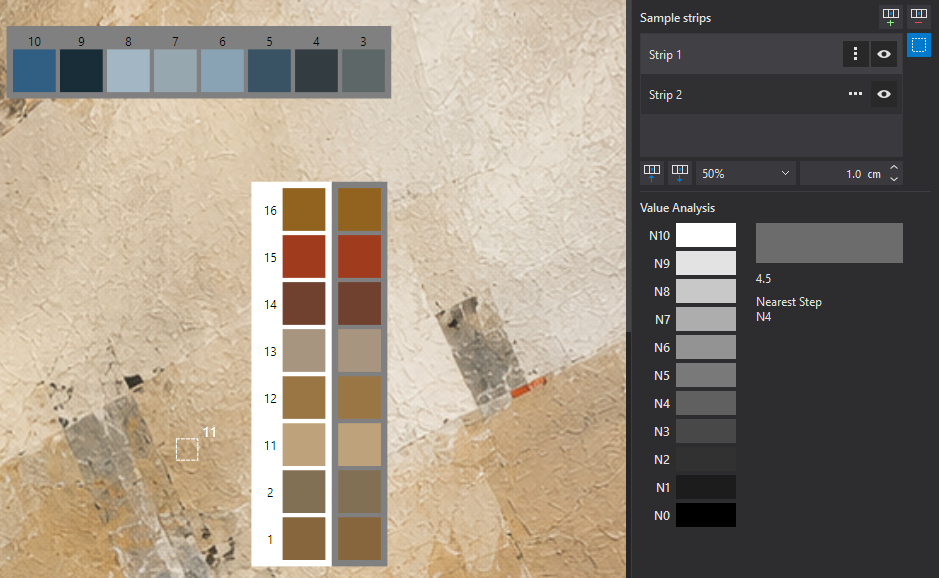
Sample Strips let you assemble one or more independent groups of colors from the shared Sample Palette and position them anywhere on the artwork canvas. For example, you can create separate color references for the sky, water, vegetation, or skin tones in a portrait.
Strips belong to the canvas, not to individual reference images. A strip may contain colors sampled from different reference images. Every sample retains its fixed number.
Each strip has independent visibility, orientation, background mode, swatch size, and canvas position.
Strip List and Selection
The Sample strips section displays the existing strips. Click an entry to select the strip whose settings you want to change.
You can also select a strip by clicking it on the canvas. Selecting a strip does not automatically hide any other visible strips: selection and visibility are separate states.
Add Strip
The plus icon beside the list creates a new strip  . ARS assigns a default name such as Strip 1. If a color sample is currently selected in the palette, that sample is included automatically. Otherwise, the new strip starts empty.
You can create multiple strips and manage each one independently. An empty strip does not appear on the canvas until it contains at least one sample.
Remove Selected Strip
The minus icon beside the list  removes the selected strip from the document. Its color samples remain in the shared Sample Palette, and other strips are not changed.
Strip Visibility, Orientation, and Name
Each entry in the Sample strips list has its own controls:
 H/V orientation icon – click once to switch that strip between horizontal and vertical layout. The icon depicts small swatches arranged in the corresponding direction.
 Eye toggle – shows or hides that particular strip on the canvas. Hiding a strip preserves its samples, position, and settings.
Strip Name (UI Only)
You can give a strip a descriptive name such as “Sky,” “Water,” “Vegetation,” or “Shadows.” Its name appears only in the ARS strip list, not on the canvas strip itself, which displays sample numbers and colors.
To rename a strip, right-click its row and choose Rename from the context menu. Alternatively, double-click the name. Edit it directly in the list: Enter confirms, Escape cancels, and leaving the editor completes the edit. There is no longer a separate name-entry field or save button.
Adding and Removing Samples
First select a color in the Sample Palette, then select the target strip in the **Sample strips** list.
 The arrow pointing into a strip (Include Color Sample) adds the selected color sample to the chosen strip.
 The arrow pointing out of a strip (Exclude Color Sample) removes the sample from that strip only.
A sample can be included only once within a particular strip, but the same sample may appear in several different strips. Its number remains unchanged everywhere.
Removing a sample from one strip leaves it in the shared palette and any other strips. Deleting it from the palette removes it from all strips.
Strip Orientation
Each strip can be set independently to:
- Horizontal strip – samples follow a horizontal sequence.
- Vertical strip – samples follow a vertical sequence.
Use the H/V toggle in the strip’s own list row to change its orientation without changing the samples it contains.
Strip Background
The background selector offers three modes:
- White – all samples appear on one continuous white background.
- 50% gray – all samples appear on one continuous neutral gray background.
- White and 50% gray – each sample appears twice, once against white and once against gray.
The dual-background mode is not a checkerboard. A horizontal strip has two continuous background bands one above the other; a vertical strip has two bands side by side. The samples follow the same order in both bands, and their numbers are shown only once.
This arrangement helps you compare how a color appears against light and neutral mid-gray surroundings without distracting alternating background tiles.
Printed Swatch Size
This parameter controls the size of a color square on the strip, not the area originally sampled from the reference image. The default is 1 cm. The current control accepts 0.5–10 cm, displaying centimeters or inches according to the ARS unit setting.
A swatch of approximately 1 cm is usually enough for everyday comparison. Larger squares may be useful for subtle color differences or a larger study sheet.
For example, a color may have been sampled using a 0.2 cm circular area yet displayed as a 1 cm square on the strip. The two sizes are independent.
Positioning Strips on the Canvas
Drag a visible, nonempty strip with the mouse to position it on the artwork canvas. Its position is stored in the canvas coordinate system, independently of the reference images and the current zoom level.
You can reposition, rotate, hide, or resize reference images without moving the strips. If the strips overlap, drag them to different locations that suit your working arrangement.
Visible strips are included in the Studio canvas print and export output.
Sample Source-Location Markers
The  Show sample locations (only from visible strips) toggle displays or hides markers on the reference images.
A source marker appears only when:
- its sample belongs to at least one visible strip;
- the common source-location display toggle is enabled;
- the source reference image itself is visible; and
- the sampling position has not been cropped out.
The marker shape matches the original sampling method: Point uses a crosshair; Square uses a dashed square; and Circle uses a dashed circle. A slightly larger white sample number appears nearby, without a dark text outline or opaque badge. Marker outlines use a thin white line, and the point crosshair is slightly larger than before. Markers are noninteractive and do not interfere with mouse operations on a reference image.
If the same sample belongs to several visible strips, its source location is marked only once. Markers follow the reference image’s position, rotation, mirroring, and cropping. When the image is resized, the sampling footprint remains tied to the same original image pixels.
Disable source-location markers whenever you want an unobstructed view of a reference image. Doing so does not delete any saved samples or strips.
Practical Example
Suppose you are preparing a landscape study using several reference images. Save the colors you need in the shared palette. Create a horizontal Sky strip with five sky samples and select both backgrounds. Then create a vertical Water strip with four reflection colors. Leave the swatch size at 1 cm and drag each strip into a convenient empty area of the canvas. If one color is useful for both sky and water, add it to both strips; it retains the same sample number.
Turn on the source-location markers when you need to check where the colors came from. Hide the markers again without changing the strips.
Project Storage and Related Features
The ARS project (.arsproj) stores strip names, visibility, orientation, backgrounds, swatch sizes, canvas positions, strip memberships, and the common marker-display setting.
