

Purpose
Project Resources is a diagnostic window for checking the reference image files used by the current ARS project: where they are stored, how much disk space they occupy, and whether they are accessible. It also lets you refresh this information, relink an affected image, or open its location in Windows Explorer.
Reference image files are stored separately from the .arsproj project file. The project stores references to the files and settings for their placement. Checking resources is particularly useful before moving a project to another folder or computer.
Project Resources is primarily a diagnostic and file-management window. It does not edit Reference image pixels, canvas dimensions, or composition. Only Relink… may change a reference file path stored in the project.
Opening Project Resources
- Open an ARS project.
- Choose File → Project Resources.
- Review the summary counters and image list.
- Select an entry to work with a particular reference layer.
The command is available only when a document is open. Close the dialog with OK, the top-right close button, or Esc.
Summary counters
Reference layers
Reference layers is the number of reference-image entries in the current document. If the same source image is used in several separate layers, each layer is counted.
Unique files
Unique files counts distinct file paths that the diagnostic check was able to access. A file reused by several layers is counted only once. The count is based on paths, not image-content comparison: identical copies stored at different paths count as separate files.
Missing or inaccessible files are excluded because the analyzer could not confirm their sizes.
Missing
Missing counts reference layers whose file or containing directory could not be found at its recorded path.
Inaccessible
Inaccessible counts layers whose file could not be opened for reading. Possible reasons include insufficient permissions, a lock held by another application, or a file-system error. The file has not necessarily been deleted.
Total file size
Total file size is the combined on-disk size of unique accessible files. A single Reference file used by several layers is included only once. Missing and inaccessible files are excluded from this total.
This is not the size of the .arsproj file or a measurement of current application memory consumption.
Reference file list
Each row represents one reference-image layer. The list includes:
- File – the reference-layer display name and image file path. Hover over a truncated path to see its full value.
- Status – the result of checking the file on disk.
- Size – the file’s on-disk size, if it could be determined; otherwise a dash (—) is shown.
Click a row to select it, or use the arrow keys. This is a selection within the diagnostics window and does not change the selected reference in the main canvas.
File statuses
- Available – the file could be opened for reading and its size determined.
- Missing – the file or its containing directory does not exist at the stored path.
- Inaccessible – the file could not be opened because of a permission or other I/O problem.
- Not loaded – an additional indication that the image is not currently loaded in the ARS document, even though its file might now be available on disk.
Important: disk availability and image loading are separate states. For example, if you chose Skip when opening a project, then restored the original Reference image file, a refresh may show Available together with Not loaded. Use Relink… to load it into the document again.
Window actions
Refresh
Refresh checks the reference files again, recalculates the summary counters and sizes, and updates the list. The selected layer is preserved if it is still present.
Use this after moving, renaming, or restoring a file while the dialog remains open.
Refresh does not reload images into the document, change recorded file paths, or mark the project as modified.
Relink…
Relink… lets you choose a new source file for the selected reference layer. The button becomes available only for a selected entry whose source file is missing or inaccessible, or whose image is not loaded in ARS.
- Select the affected reference in the list.
- Click Relink….
- Locate and confirm the appropriate Reference image file in the file picker.
- If valid, ARS relinks that particular layer and updates the resource summary automatically.
The replacement image must have the same pixel width and height as the dimensions stored for that reference. This protects the existing placement geometry. An unsuitable file produces an error and the relink is not applied. Canceling the picker leaves the reference unchanged.
If the file path changed, the operation may mark the project as modified (an asterisk * in the title bar). Save with File → Save Project to retain the new path.
Note. This uses the same reference-relinking mechanism available as Relink Reference… in the main reference controls. From Project Resources, it acts on the selected list entry without changing the main canvas selection.
Open File Location
Open File Location uses Windows Explorer to show the selected file’s location:
- If the file exists, Explorer opens its folder and selects the file.
- If the file is missing but its containing folder still exists, Explorer opens that folder.
- If the containing folder is also missing or cannot be opened, an error is shown.
The button is available when a list entry is selected. This action does not modify the ARS project.
OK
OK closes the diagnostic window. Closing it does not change reference entries or project data.
Collect Project Assets…
Choose File → Collect Project Assets… to collect copies of Studio References before moving a project. This is a separate File-menu command, not an action inside the Project Resources dialog. It does not collect Viewer photographs or Journal files.
When to use it
An ordinary Save Project operation writes the .arsproj document but does not embed the original Reference image files. On another computer, those files might not be available. Collecting assets helps preserve the file references required by the project.
The command requires a project that has already been saved and reference files that can be accessed. Relink missing references before collecting assets.
Where files are copied
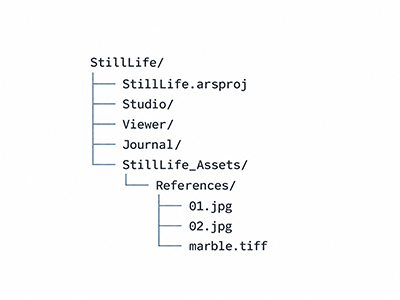
For example, if the project is saved as StillLife.arsproj, collected Studio References are stored inside the project folder.
ARS copies the referenced image files into <ProjectName>_Assets/References, resolves name collisions when necessary, updates the image paths stored in the document, and saves the .arsproj file.
Original source image files are not moved or deleted. If several layers refer to one original file, only one copy of it is made. Repeating collection for already-collected files does not needlessly duplicate them; the completion message may report 0 new files.
Progress and cancellation
During copying, a progress dialog displays the current filename, overall percentage, and a Cancel button.
You can cancel while files are being copied. ARS cleans up unfinished temporary copies and leaves the project’s reference paths unchanged. Once copying has finished and final project saving begins, the dialog shows Finalizing project save… and cancellation is disabled.
When collection finishes successfully, a message reports how many files were copied. If copying or saving fails, ARS displays an error.
Transferring a collected project
When moving or sharing a project, copy the entire project directory, including .arsproj, _Assets, and any Viewer or other workspace files in use.
Important: this command collects only Studio References. If Viewer photographs live outside the project folder, you must also preserve them and make sure Viewer can locate them after the move.
Practical example
Suppose your still-life project contains three reference layers: two different JPEG files and one TIFF texture.
- Choose File → Project Resources to inspect the counters and file statuses.
- If an image is marked Missing, select it and use Relink….
- Click Refresh to check the file paths again.
- Save any changes to the project.
- Before transferring the project, choose File → Collect Project Assets… and wait for copying to finish.
- Transfer the whole project folder. Also preserve any Viewer photographs referenced from outside that folder.
