

Purpose
The Viewer Image Analysis modes help you examine a photograph before drawing or painting: distinguish light and dark areas, study broad color masses, or prepare an auxiliary contour drawing. They are not photo-editing tools. The original image files are never changed.
Each photograph in the Viewer list can have its own analysis mode and saved settings. When you switch photographs, their settings are restored. The processed image replaces the color photograph in the Viewer display; the Viewer grid, if enabled, remains a separate screen overlay.
Choosing an Analysis Mode
Open a photograph in Viewer and select the required mode from the analysis-mode list:
| Mode | What it displays | Typical use |
|---|---|---|
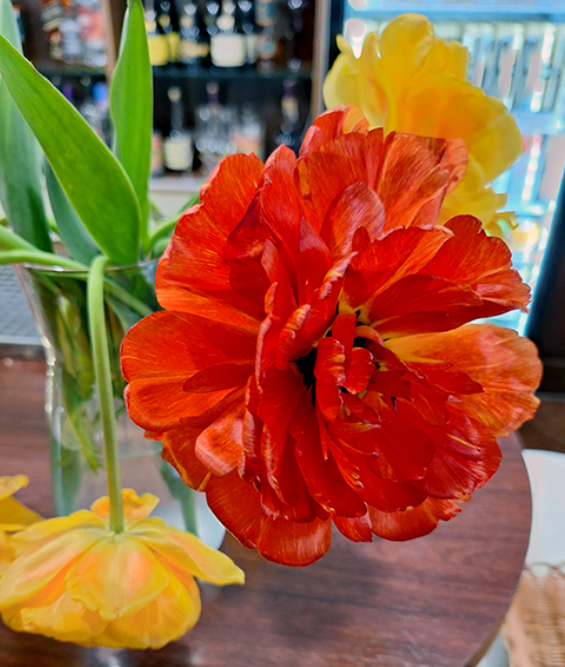
| Normal | The original color photograph | Regular reference viewing |
| Grayscale | The photograph without color | Checking overall lightness relationships |
| Value Masses | Simplified areas of lightness | Understanding the main light and shadow masses |
| Value Zones | A limited set of neutral Value steps | Comparing Value structure and boundaries |
| Color Masses | Simplified, larger color regions | Planning the first broad color block-in |
| Contour View | Black contour lines on white | Preparing and transferring a preliminary drawing |
Viewer displays a Processing… indicator while calculating an analysis. When parameters change, an ongoing calculation may be canceled and restarted. Most processing modes display a reduced-resolution working copy. Switch back to Normal when you need to examine the original photograph’s fine detail again.
Grayscale
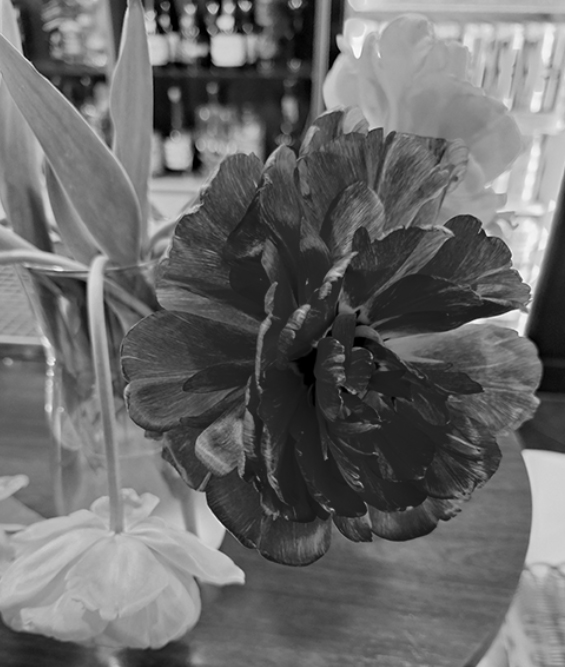
Grayscale removes color information and retains differences in lightness. Use it to check whether two colors actually differ in Value, rather than merely in hue or chroma.
Producing a grayscale view does not alter the color original. This Viewer mode differs from Studio Value Analysis: Studio evaluates a selected color sample, whereas Viewer shows the whole photograph in grayscale.
Value Masses
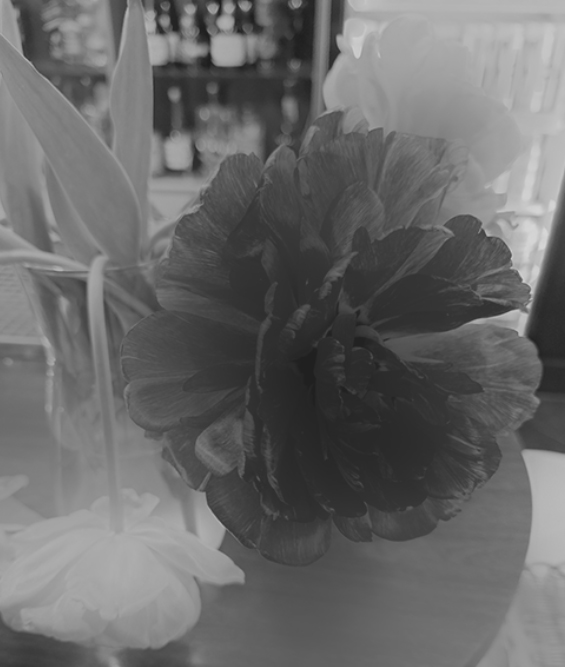
Value Masses simplifies lightness variations, making small details less distracting and the main distribution of light and shadow easier to see. This is especially useful early in a drawing or painting, before committing to smaller details.
| Setting | Range | Effect |
|---|---|---|
| Blur radius | 0–128 | A larger radius simplifies broader areas; 0 disables this smoothing stage. |
| Edge preservation | 0–100 | Controls how strongly boundaries between different Values are retained. |
Start with the defaults: Blur radius 24 and Edge preservation 50. Increase Blur radius to study larger lightness masses. If important form boundaries become too soft, try increasing Edge preservation.
Note: Value Masses does not quantize the image into a fixed number of steps. Smooth Value transitions may remain. Use Value Zones if you need a clearly stepped representation.
Value Zones
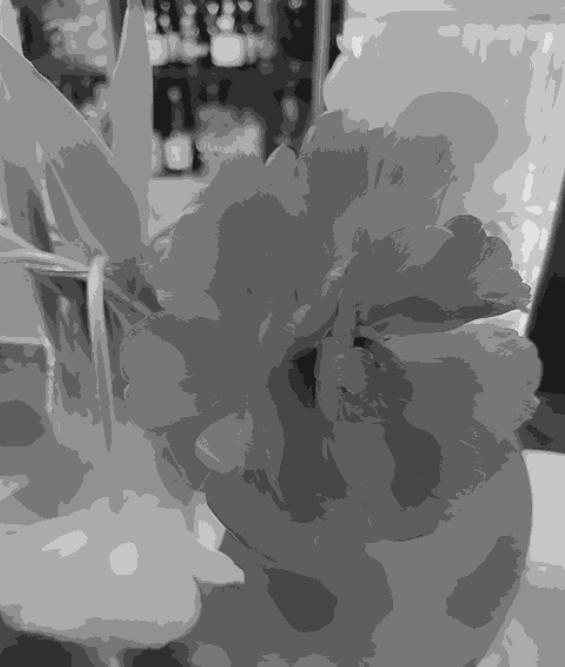
Value Zones divides the photograph into 3–11 neutral Value steps. The image is smoothed and then assigned to a limited set of lightness levels. This can help identify areas with related Values and see their arrangement within the composition.
The Number of value steps setting determines the number of steps. Fewer steps give broader simplification; more steps reveal intermediate Values. The default is 11.
A neutral scale showing approximate N values is displayed with this mode. These values follow an approximation based on Munsell Value principles. Click an area of the processed image to highlight its corresponding step on the scale. No extra marker is drawn over the photograph.
This is a visual approximation, not a calibrated reproduction of physical Munsell standards. Monitor brightness, color profiles, and viewing conditions can affect what you see.
Color Masses
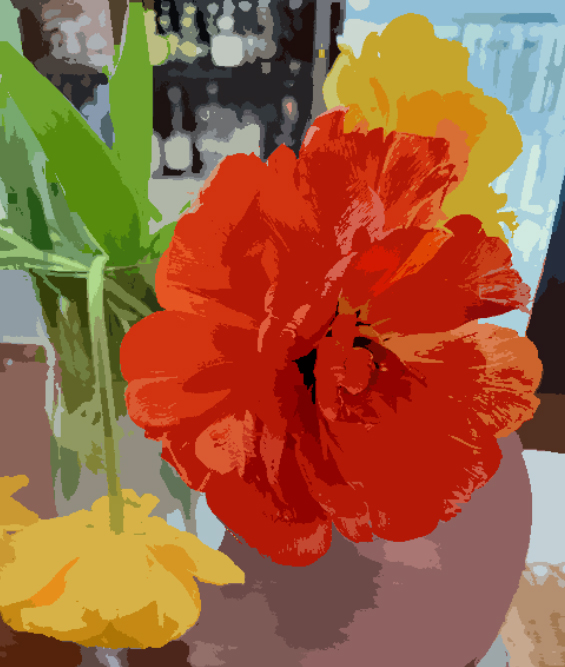
Color Masses aims to identify broad, spatially connected color regions. Rather than merely reducing the total number of colors in a photograph, ARS considers color similarity and neighboring regions. The result can help you plan a first block-in based on the image’s larger color relationships instead of every photographic detail.
| Setting | Range | Effect |
|---|---|---|
| Mass size | 16–80 | Changes the initial region scale. Larger values generally produce broader areas. |
| Merge strength | 0–100 | Controls merging of adjacent, similar regions. Higher values generally merge more areas. |
The defaults are Mass Size 28 and Merge Strength 50. Change one setting at a time and compare the result with Normal.
This mode is an analytical aid, not a literal brushstroke map or a recommended palette of paint pigments. If background and subject colors are similar, their areas can merge; some region boundaries may appear angular. When a result is misleading, check the original photograph and try different settings or framing.
Color Masses works on a simplified copy with a maximum long side of approximately 1000 px. This is appropriate for studying broad shapes and makes parameter adjustment faster; it is not meant to replace the high-resolution original as a painting reference.
Contour View
Contour View displays lines that may help you prepare an auxiliary drawing. It is not an automatically correct drawing: both methods respond to changes in photographic lightness, so they may detect unwanted textures or omit important but low-contrast boundaries.
Use the Method control to choose between:
Canny
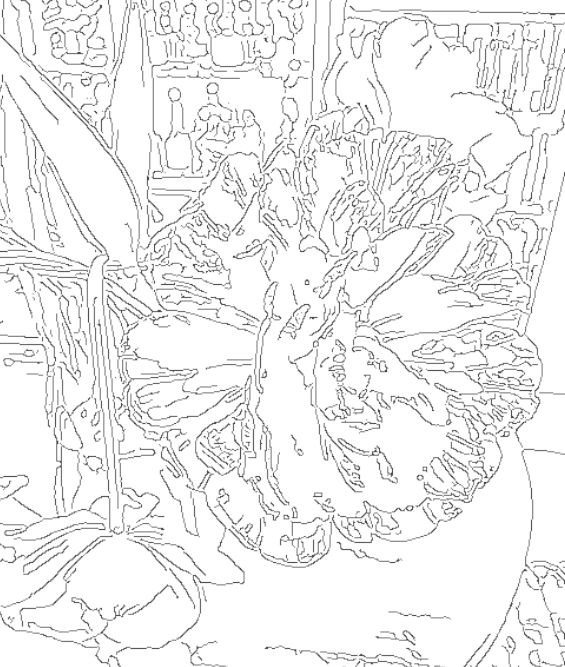
Canny detects contrasting boundaries. It can help identify object silhouettes, facial features, and transitions between forms.
| Setting | Range | Effect |
|---|---|---|
| Sensitivity | 0–100 | Higher values detect more contours, including weaker ones. |
| Noise reduction | 0–6 | Applies more smoothing before detection, reducing fine textures and noise. |
The defaults are Sensitivity 50 and Noise Reduction 2. If there are too many lines, lower Sensitivity or increase Noise Reduction. If important faint boundaries are missing, increase Sensitivity.
Trace Contour
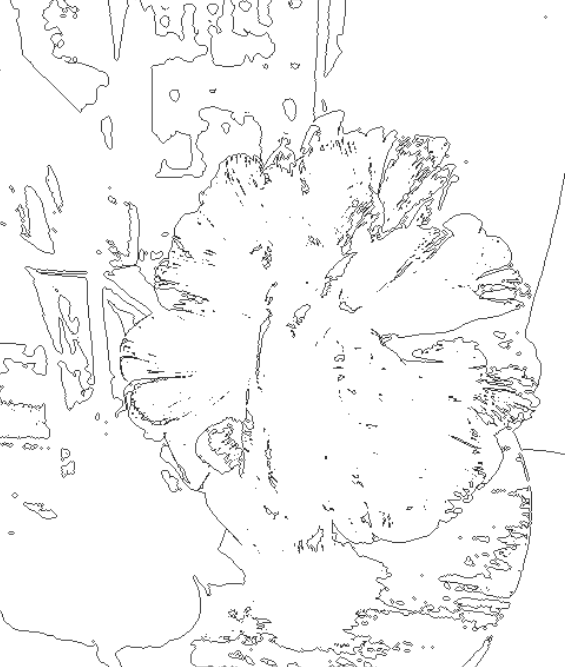
Trace Contour draws boundaries at a selected lightness level. Think of these as isolines of a particular Value: changing the level shifts the outlines into other light or dark parts of the photograph. It explores form in a different way from Canny.
| Setting | Range / choices | Effect |
|---|---|---|
| Level | 0–255 | Selects the lightness boundary to trace. |
| Upper / Lower | Select one | Determines which side of the boundary receives the drawn line. It is not simply a black/white inversion. |
| Noise reduction | 0–6 | Smooths the photograph before tracing the selected Value boundary. |
The defaults are Level 128, Upper, and Noise Reduction 2. Level is not a detail slider: it changes which lightness boundary is traced. Use Noise reduction, or switch methods, to control unwanted detail.
Both methods show black lines on a white background without changing the original photograph. The current contour preview is computed from a copy with a long side limited to approximately 2048 px.
Send to Studio
Once the contours are suitable for transferring a drawing, you can send them to Studio as a new Reference image and then use Studio’s positioning and printing tools.
- Open or create a document in Studio. Viewer and Studio may have different projects open; the transfer uses the currently open Studio document.
- In Viewer, select the photograph and choose Contour View.
- Adjust the Canny or Trace Contour settings and wait until processing finishes.
- Click Send to Studio.
- If the Studio project has not yet been saved, first select its save location. Canceling this step cancels the transfer.
- ARS saves the contours as a PNG in the Studio project’s <Name>_Assets/References folder, adds the result to Studio’s Reference list, and switches to Studio.
- In Studio, adjust the Reference’s size and position, review your print settings, and save the Studio project to keep the new Reference in the document.
Studio receives the already calculated contour image shown in Viewer, not a new rendering at a different scale. Lines are therefore not added or lost simply because of the transfer. The Viewer grid, coordinate strips, and other on-screen controls are not included in the PNG.
The resulting PNG is an auxiliary drawing, not a replacement for the original photograph or a high-resolution painting reference. In Studio it can be resized and arranged like any other Reference. Transferring it does not combine or synchronize Viewer and Studio projects, or automatically save both documents.
Practical Example
Suppose you are preparing a portrait drawing before painting. First use Value Masses to examine the largest light and shadow shapes. In Color Masses, consider the broad color regions you might use for the first block-in. Next select Contour View, choose Canny, and reduce Sensitivity until many unnecessary hair and skin-texture lines disappear. Send the result to Studio.
In Studio, size the contour Reference to match the intended drawing, check the print preview, and print it. Continue to refine the drawing through your own observation: the algorithm is only a preparation aid.
Important Notes
- Analysis settings are saved separately for each Viewer photograph in its .arsview document. Processed bitmap pixels are not stored in that document; results can be recomputed as needed.
- Viewer analysis is not a calibrated measurement of physical Value, color, or paint pigments.
- Switching modes or changing analysis parameters does not overwrite the original image file.
- If processing is still running, wait for it to finish before using Send to Studio.
- Studio receives the contour copy as a separate Reference. Adding it may mark the Studio project as modified even when nothing has changed in the Viewer project.
